Logos for the Web: How to Choose File Types (PNG, JPG, SVG) for Fast Loading
Maya Collins | Practical web operations editor
Logos for the Web: How to Choose File Types (PNG, JPG, SVG) for Fast Loading
The right logo file should disappear into the page in the best possible way: crisp edges, no awkward background box, and no extra weight slowing down a perfectly innocent header.
For broader planning context, teams can compare guidance from web.dev guidance before choosing a workflow.
Most people arrive with the same sensible questions. Should a website logo be PNG or SVG? Is JPG ever acceptable? How many export sizes do I really need? And why does the exact same mark look sharp in one place and fuzzy in another? Those are practical questions, and they deserve practical answers.
The short version is that file type affects both appearance and page weight. It changes whether the logo scales cleanly, whether transparency survives, and whether the browser has to render a soft-edged raster file where a sharp vector would have done the job more elegantly.
In this guide, I will walk through when to use PNG, JPG, and SVG, how to export the common sizes without collecting a small museum of nearly identical files, and how to test the result before you publish it across your homepage, your services page, and your contact flow.
Related implementation details are also covered in MDN Web Docs, which helps keep tool decisions grounded in established practices.
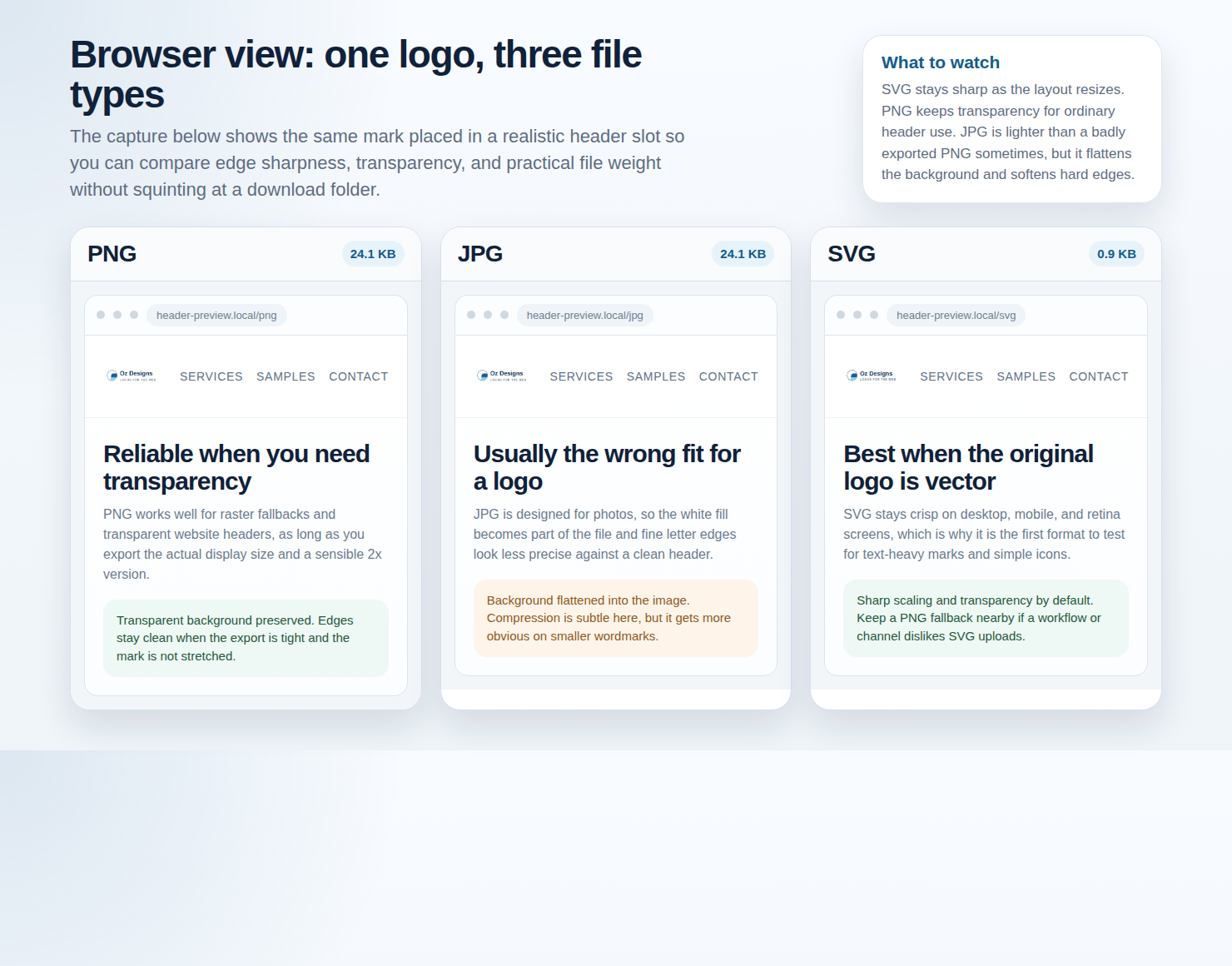
Why logo file type affects speed and sharpness
A logo is small, but it shows up everywhere. It sits in the header, sometimes in the footer, sometimes in a sticky navigation bar, and often in social previews, favicons, or email signatures. That means a weak export gets repeated all over the site.
There are two practical questions to ask before you choose a format. First: does the logo need to scale to different sizes without softening? Second: does it need a transparent background so it can sit cleanly on different page sections? Those two questions usually narrow the answer quickly.
What visitors notice is not the file extension itself. They notice fuzzy text, a pale box around the logo on a dark header, or a header image that feels heavier than it should. In other words, the browser only has to do its job once, but your logo has to keep doing its job every day.
If you already have website graphics that need similar treatment, the related guide on turning logo files into crisp web assets is a useful companion. This article focuses on the logo decision itself.
Quick guide: PNG vs JPG vs SVG
| Format | Best when | Main strength | Main risk |
|---|---|---|---|
| SVG | Your logo is vector artwork, flat shapes, icons, or text-heavy line work. | Stays crisp at many sizes and is often very light for simple marks. | Needs sensible handling if your workflow or platform strips SVG uploads. |
| PNG | You need reliable transparency and you already have a raster export. | Clean edges and transparent background support. | Can become soft or heavy if exported larger than necessary. |
| JPG | You are using a photographic, textured, or full-bleed brand image rather than a normal logo mark. | Good compression for photographic content. | No transparency and visible compression artifacts around text or sharp edges. |
My default rule is simple. If the logo is vector artwork, start with SVG. If you need a broad-compatibility raster fallback, export PNG. Use JPG only when the “logo” behaves more like a hero image, textured badge, or photograph than a standard website mark.
This matters because text and hard edges are exactly where JPG compression looks least graceful. A scenic photo can tolerate it. A brand wordmark usually cannot.
Common scenarios: transparent backgrounds, gradients, icons, and text-heavy marks
Transparent header logo
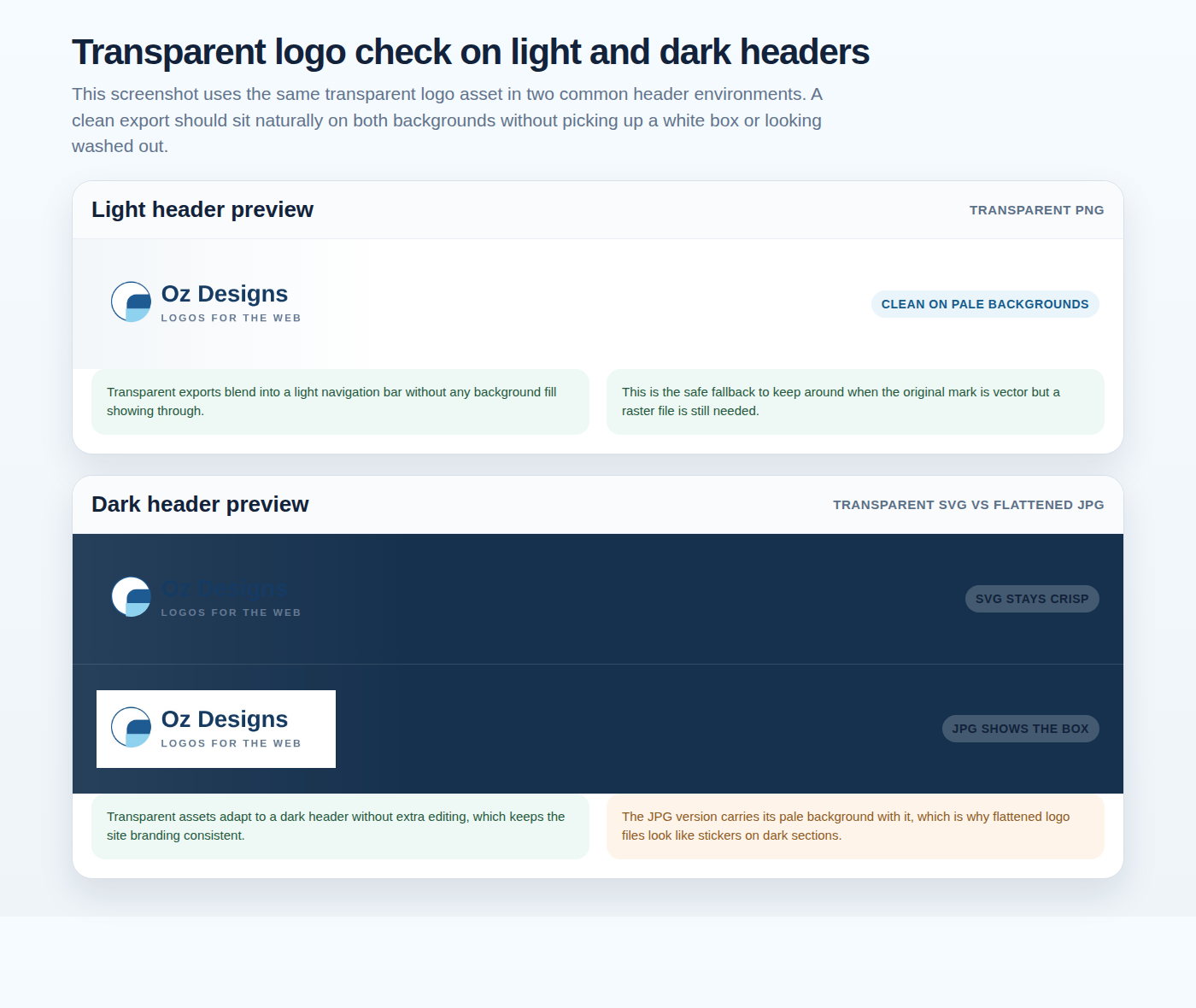
Use SVG when possible, or PNG if you need a raster fallback. Avoid JPG here because the flattened background usually shows up at the worst possible moment.
Gradient or textured artwork
SVG can still work if the gradient is part of the vector. If the mark depends on painterly texture or photo detail, a carefully sized PNG is usually safer than forcing it.
Small icon or symbol
SVG is usually the cleanest choice because it scales well across navigation, favicons, and high-density screens.
Text-heavy wordmark
SVG gives you the best chance of keeping letter shapes crisp. If you must use PNG, export at the display size you need plus a retina version.
Before you change anything, look at where the logo actually appears. A logo can pass the design review and still fail in the header because the header is smaller, tighter, and far less forgiving. That is why the export decision should follow the placement, not the other way around.
A practical example: if your logo includes a tagline that disappears in the navigation bar, the problem may not be the format alone. The real fix may be a simplified header version, then a full version for larger placements. Format helps. Structure still matters.
Export checklist: target sizes, retina displays, and crisp edges
You do not need twelve exports. You need the right few.
- Measure the real display slot. If the header shows the logo at 180 pixels wide, start there instead of exporting a giant file and hoping the browser will tidy up after you.
- Create a 2x raster fallback when needed. For a 180-pixel display width, export a PNG at 360 pixels wide for high-density screens.
- Trim empty space. Oversized transparent padding makes the image behave unpredictably in navigation layouts.
- Check line thickness. Thin strokes and tiny serif details are often what turn “technically correct” into “oddly blurry.”
- Keep one approved dark-background version. If the header changes color across the site, prepare that alternate export now instead of improvising later.
| Placement | Typical display size | Practical export |
|---|---|---|
| Desktop header | 160 to 240 px wide | SVG first, or PNG at display width plus 2x fallback |
| Mobile header | 120 to 180 px wide | Simplified SVG or tightly cropped PNG |
| Footer or secondary placement | 140 to 220 px wide | Reuse the approved header export if it still reads clearly |
| Small icon or mark | 16 to 64 px | Separate simplified SVG or icon-specific PNG |
Retina or HiDPI screens do not require drama. They simply reward sensible exporting. If the raster file looks soft, it is usually because it is being stretched beyond the size it was designed to hold.
Naming and organization tips so you can still find the right file next month
File chaos is not glamorous, but it is expensive in tiny, repetitive ways. A clean naming system saves time for designers, developers, and the future version of you who has forgotten which file was “final-final-real.png”.
- Use plain names:
ozdesigns-logo-primary.svg,ozdesigns-logo-primary-360w.png,ozdesigns-logo-dark.svg. - Keep variants explicit: include
primary,dark,icon, orheaderin the filename. - Separate source files from web exports: keep editable source artwork in one folder and approved website exports in another.
- Retire old versions clearly: move them into an archive folder instead of letting them mingle with the live set.
If the logo is being handed off into a broader project build, document the approved exports in the same brief as the rest of the design assets. For larger product work, a short implementation note alongside custom web development services planning can prevent the usual “which logo file should we ship?” detour.
Simple testing steps: image weight, browser rendering, and layout shifts
You do not need an elaborate lab. A short real-world check is enough.
1. Check the file weight
Compare the SVG and PNG versions. For simple marks, SVG is often lighter. For more complex artwork, PNG may still be reasonable. Let the real file tell you.
2. Check it in the header
Open the real page, not just the design file. Look at desktop and mobile. If the logo seems soft, crowded, or too tall, fix that placement before you publish.
3. Check for layout movement
Make sure the image dimensions are declared so the header does not jump while the page loads. A tiny logo should not behave like a suspense sequence.
A useful habit is to review the same export on your blog, your main landing page, and the page where visitors take action. If the mark works across those three, it is probably ready for normal use.
When to use a fallback and how to stay consistent across browsers
SVG is the best starting point for many web logos, but you do not have to be ideological about it. If your CMS, email software, or a client workflow is uncomfortable with SVG uploads, keep a clean PNG fallback ready.
The practical goal is consistency, not purity. Use the same proportions, spacing, and approved colors across versions. A fallback is successful when nobody notices it had to step in.
If your site includes a normal application or form path, consistency matters there too. A logo that behaves one way on the homepage and another way on the Email Application Form makes the whole site feel less considered than it really is.
FAQ
Can I use SVG everywhere?
For most modern websites, SVG is an excellent default for logos and icons. The main exception is when your publishing workflow blocks SVG uploads or when a specific channel needs a raster file instead. That is why keeping a PNG fallback is a calm, practical choice.
Why does my logo look blurry?
The most common reasons are straightforward: the PNG is being stretched larger than its export size, the logo has very fine details that do not survive at header scale, or the browser is rendering a raster file where a vector original would stay sharper.
Is PNG always better than JPG for logos?
Usually, yes, for standard web logos. PNG supports transparency and preserves hard edges more cleanly. JPG still has a place for photographs or textured artwork, but it is rarely the first choice for a wordmark.
What is the smallest set of files I should keep?
In most cases: one primary SVG, one dark-background SVG if needed, one PNG fallback at standard size, and one 2x PNG for high-density screens. Add an icon-only version if the full wordmark is too detailed for small spaces.
The practical next step
If you are unsure which export is live on your site right now, start with a quick audit instead of a redesign. Check the header on desktop and mobile, compare the current file weight, and make sure the logo does not pick up a visible box on dark backgrounds. Small corrections here usually produce a bigger quality improvement than people expect.
If you want help reviewing the design side of the handoff, browse the services page or send a focused question through the contact page. A clear file choice is one of those quiet decisions that makes the rest of the site easier to trust.