Logos & Web Buttons That Actually Convert: A Practical Checklist for Small Businesses
Logo and button checklist
Logos & Web Buttons That Actually Convert: A Practical Checklist for Small Businesses
Your logo and your buttons are doing one job together: first they help people feel oriented, then they help people act. If either one is muddy, hesitation moves in and starts rearranging the furniture.
For broader planning context, teams can compare guidance from web.dev guidance before choosing a workflow.
Most readers start with the same practical questions. Is my logo too detailed for the web? Are my buttons clear enough on mobile? Should I use “Get a quote,” “Request info,” or something else? Those are sensible questions, and the good news is that you can answer most of them with a short, repeatable audit.
In this guide, I will walk through what to check, why it matters, and the smallest useful fix for each problem. We will look at your homepage, a few key conversion pages, your logo rules, your button system, and the microcopy around the action itself.
By the end, you will have a practical workflow you can use with a designer, a developer, or your own future self on a Friday afternoon when everything suddenly looks “almost right” and therefore suspicious.
Related implementation details are also covered in MDN Web Docs, which helps keep tool decisions grounded in established practices.
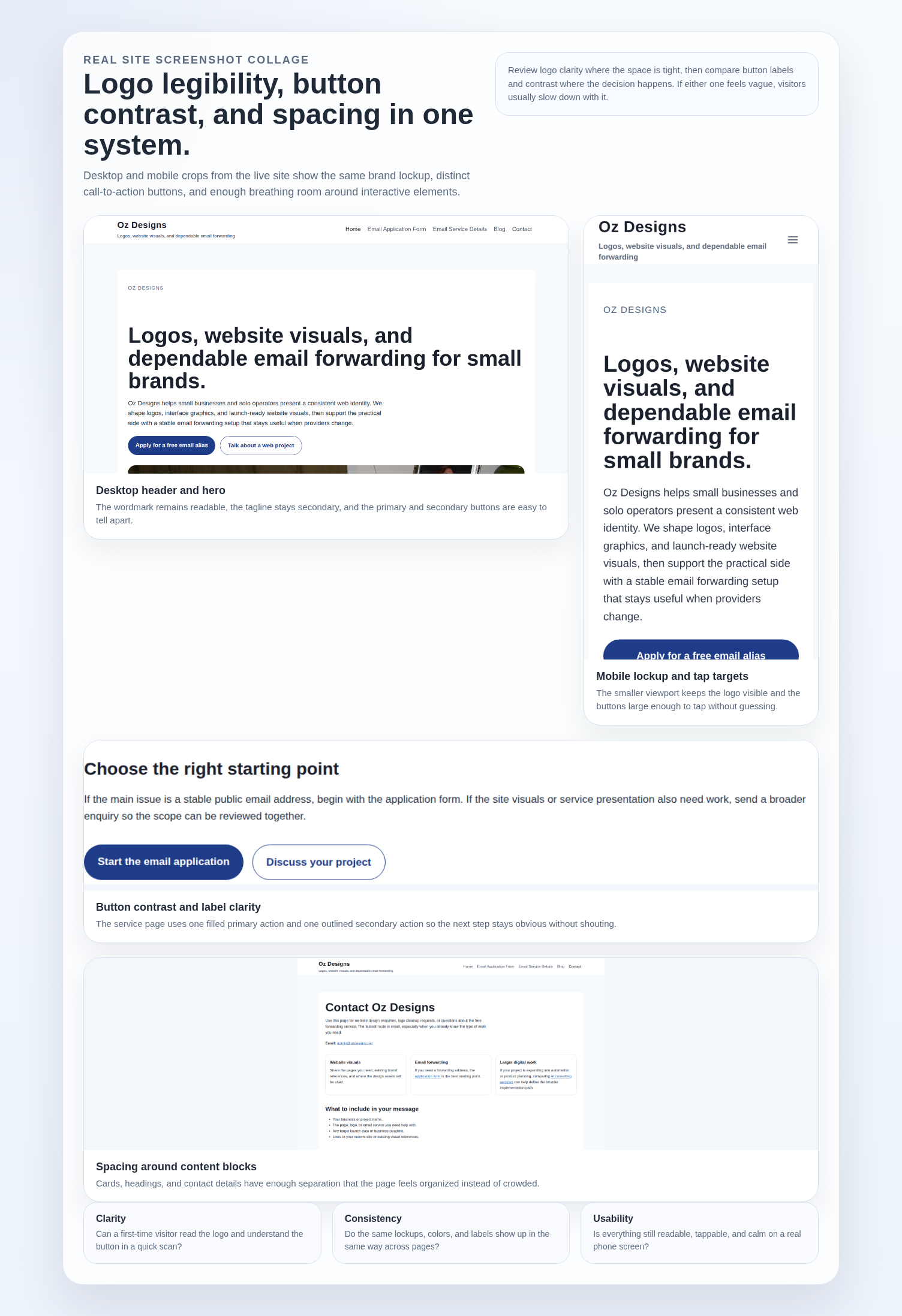
Why logos and buttons need to work together
A typical small-business visitor moves through three steps: notice the brand, decide whether the page feels trustworthy, and choose an action. Your logo handles recognition and tone. Your buttons handle direction. If the logo is hard to read or the button wording feels vague, the page creates friction twice.
That is why I treat these pieces as one system instead of two unrelated design tasks. The logo tells people where they are. The button tells them what happens next. When both are clear, the page feels calmer and the next step feels lower-risk.
What this means in practice is simple: audit the brand mark where space is tight, audit the calls to action where choices matter, and make sure the same visual rules carry across the pages people actually use. If you want a current example page to review, start with the homepage and follow the same scan on your own site.
Quick audit: what to check on your homepage and key pages
Before you redesign anything, choose a short list of pages: your homepage, one services or sales page, your contact page, and any landing page that asks people to book, enquire, or download something. You do not need to boil the ocean. You need to inspect the pages where hesitation costs you the most.
A useful trick here is to run the audit twice. First, look quickly and trust your first impression. Second, go back with a short list: logo, primary button, secondary button, form label, and spacing near the main call to action. That second pass turns “this feels a bit off” into specific fixes someone can actually implement.
Zoom out
Look at the full page view first. Can you spot the logo quickly? Can you identify the main button without reading every line?
Check mobile
Open the same page on a phone. Logos often become blurry or tiny there, and buttons that looked polite on desktop suddenly become hard to tap.
Check contrast
Compare button text to button color, and button color to the page around it. If everything sits in the same tonal range, the action disappears.
Check labels
Read the button text out loud. If the label sounds like an internal process word instead of a user decision, rewrite it.
Make a simple issue list while you scan. Write things like: “logo too small in header,” “button text vague,” “secondary button stronger than primary,” or “contact button too close to surrounding links.” Small notes are enough. They give you a fix list instead of a vague feeling that the page is not working.
Logo basics for the web
What to check first: can the logo still be read at the smallest size you actually use? That includes the header, mobile navigation, favicon-sized contexts, and any place where the logo sits near buttons or navigation. Fine lines, long taglines, and complicated gradients often look respectable in a design file and then become a low-contrast rumor in the browser.
Why it matters: if the brand mark is unclear, the page loses recognition before the visitor even considers the offer. That does not mean every logo needs to be minimal. It does mean every logo needs a version that survives small spaces without negotiation.
Simple fix: define one primary lockup and one simplified lockup. The primary version can include the full wordmark and supporting detail. The simplified version should keep only what is necessary for recognition at small sizes. If the tagline cannot survive the mobile header, let it go there instead of shrinking everything into dust.
| What to check | Why it matters | Decision rule |
|---|---|---|
| Small-size legibility | Unreadable logos weaken recognition and make the header feel less deliberate. | If letters blur or merge at mobile size, use the simplified lockup. |
| Color limits | Too many colors make the mark harder to reproduce across backgrounds and devices. | Make sure it works in full color, one color, and a reversed light-on-dark version. |
| Usage consistency | Changing size, color, or spacing from page to page makes the site feel improvised. | Document one primary lockup, one simplified lockup, and the backgrounds each one may sit on. |
| Spacing and placement | Crowding the logo against navigation or buttons makes everything harder to scan. | Keep visible breathing room around the mark so it is clearly separate from links and calls to action. |
| Web readiness | Soft edges and inconsistent exports make even a good logo look careless. | Check it at common header and mobile sizes before publishing, not after a client notices. |
If you are commissioning the work, ask for the usage rules in writing. “One primary lockup + one simplified lockup” is a good baseline. It is not glamorous, but it prevents a surprising number of future arguments with headers, hero sections, and email signatures.
Button essentials: contrast, size, spacing, and readable labels
Buttons are where design becomes instruction. A button has to stand out, feel comfortable to tap, and describe the next step in plain language. If the button text is a mystery, users will treat it like one.
Contrast
Check: does the button text clearly separate from the button fill, and does the button separate from nearby sections?
Why: low contrast makes the action easy to miss, especially on mobile or in bright light.
Rule: if you have to stare at it for a beat, increase the difference in color or weight.
Size
Check: is the button easy to tap with a thumb, not just a cursor?
Why: cramped targets create missed taps and general irritation.
Rule: if the button feels delicate on a phone, give it more padding before you change the wording.
Spacing
Check: is there breathing room around the button, and enough separation from nearby links?
Why: crowded buttons lose hierarchy and become harder to trust.
Rule: keep enough space that each action feels intentional instead of piled in.
Labels
Check: does the text start with a useful verb and match the page goal?
Why: vague labels increase hesitation because users cannot predict the next screen.
Rule: name the action from the visitor’s point of view, not your internal process.
Use one primary button style and one secondary style where possible. The primary button should signal the main action for the page. The secondary button can support a lower-commitment alternative, such as “Request info” beside “Book a call.” If every button uses the same emphasis, nothing is primary anymore.
Microcopy that reduces hesitation
The label on the button and the short text around it should answer the same question: what happens next? Good microcopy does not try to sound clever. It reduces uncertainty.
| Use this label | Best when | What to say nearby |
|---|---|---|
| Request info | The user is early in the process and needs answers before deciding. | Add a short note that they are sending a question, not committing to a project. |
| Get a quote | The page is about priced services and the next step is a scoped estimate. | Mention what details help produce a useful quote. |
| Book a call | The expected next step is a conversation, not a form-only process. | Say roughly what the call covers so it does not feel ambiguous. |
| Download the guide | The page offers a resource, checklist, or template. | Tell people whether the file opens immediately or arrives by email. |
Notice how each label names a concrete action. Compare that with “Submit,” “Learn more,” or “Click here.” Those labels are not evil. They are just lazy about context. On a form, “Submit” tells the software what is happening. “Request a quote” tells the human.
Keep the support text close to the button when the action carries any uncertainty. A short line such as “We will review your details and reply by email” or “This opens a short enquiry form” removes guesswork without adding clutter. Good microcopy is not decorative writing. It is a small promise about the next step.
Match the wording to the page goal. If the next step is a form, say it. If the next step is a call, say that too. The Email Application Form is a good example of when expectation-setting matters: visitors should know they are starting an application, not sending a vague general enquiry. If the action is broader, point them to contact instead.
Common mistakes to avoid
- Too many colors or button styles. If every section invents a new accent color, the action hierarchy becomes harder to follow.
- Low contrast on small screens. A button that blends into a pale hero background may still look acceptable on a large monitor and vanish on a phone.
- Vague labels without context. “Learn more” can work inside a card grid with strong headings, but it is weak as the main decision point on a services page.
- Buttons that are technically clickable but not obviously interactive. If the target is tiny or styled like ordinary text, people hesitate before touching it.
- Logo changes that feel random. Switching lockups, colors, or proportions from page to page makes the site feel less reliable.
Most of these problems are not dramatic. They are cumulative. One weak label, one soft logo export, and one cramped mobile button can make a page feel harder than it should. That is exactly why a checklist helps.
A simple production workflow so you do not redesign every page
1. Define your styles
Document the primary logo lockup, the simplified lockup, approved backgrounds, your primary and secondary button styles, and any type rules that affect readability.
2. Create the variants
Prepare the logo for light and dark backgrounds, then define button states for default, hover, focus, and active. This prevents ad hoc edits later.
3. Test across devices
Check desktop and mobile on the homepage, your key services page, and your contact or form page. That is enough to catch most issues early.
4. Finalize and document
Keep the rules in one short file or design handoff so future pages use the same system instead of reinterpreting it every time.
This workflow is useful whether you are updating a brochure site or coordinating with a developer. If the project grows into something much larger than a standard small-business website, it can also help to compare custom web development services before you duplicate the same UI decisions across a more complex build. For everyday website guidance, keep browsing the blog and review the current offers on the services page.
Checklist you can use before publishing
Logo checklist
- The logo is readable at desktop and mobile header sizes.
- There is one primary lockup and one simplified lockup.
- The logo works in full color, one color, and on dark or light backgrounds as needed.
- The logo has enough spacing around navigation, buttons, and nearby text.
- The same usage rules apply across the homepage and key internal pages.
Button checklist
- The primary button stands out from the page background and surrounding links.
- The button is easy to tap on a phone without precision work.
- There is enough space around each button to avoid collisions.
- The label uses an intent-based verb such as “Request info,” “Get a quote,” “Book a call,” or “Download the guide.”
- Primary and secondary actions use clearly different visual weight.
Microcopy checklist
- The wording explains what happens next.
- The surrounding text sets expectations for a form, a call, or a download.
- There is no internal jargon doing the job of real explanation.
Testing checklist
- Review the homepage plus one to three key conversion pages.
- Check desktop and mobile views.
- Look at contrast and readability before you worry about decoration.
- Fix the obvious issues first, then publish with a short note of the rules for future pages.
If your current pages feel close but inconsistent, that is usually a good sign. You probably do not need a full redesign. You need a few clearer rules, a quick test on real devices, and a clean path to the next step. If you want a second set of eyes, review your pages against this checklist, then use the contact page to ask for help.