A Plain-English Guide to Website Email Forwarding for Small Teams
One address. The right inbox. No workflow chaos.
If your website email goes to the “wrong” team—while every reply lands in a different place—you don’t just lose speed. You lose context. According to Microsoft, email overload is one of the biggest time sinks for many organizations, and streamlined routing helps reduce the mess that follows. And according to the Internet Engineering Task Force (IETF), message headers and forwarding behavior are part of how mail is supposed to be processed end-to-end—so the details you set up in your system matter. (See Microsoft Research on collaboration/work patterns and RFC 5322: Internet Message Format.)
In practice, most small teams are asking:
- What does website email forwarding actually do?
- Will forwarding break replies or send them to the wrong person?
- How do I keep messages organized when multiple team members get copied?
- What should I test before I switch?
This guide answers those questions in plain English, with a setup-focused checklist you can run before going live.
What you’ll learn: what forwarding is, when it’s a good fit for small teams, the most common setup mistakes to avoid, a simple way to keep replies organized, and a pre-launch checklist you can use again and again.
What email forwarding does (in plain English)
Email forwarding is a routing rule: when a message arrives at one address, it’s automatically sent along to another address (or addresses). You keep the “public-facing” address—often your website contact address—while the receiving inbox can be where your team actually works.
There are two practical models you’ll see:
- Forward as-is (most common): the message is delivered to the destination mailbox, preserving the original headers as the mail system expects.
- Forward as an attachment (less common, but shows up): the original message is wrapped as a separate file, which can change how replies and labels behave in some clients.
Why you should care: the mail headers and how your receiving system handles them determine whether replies stay connected to the same conversation thread.
When forwarding is useful for small teams
Forwarding shines when you want a single website entry point, but you don’t want to run separate inboxes for every role.
1) One public contact address for a small team
Use one address on your website (e.g., contact@) and forward it to the team inbox or the person who’s on triage duty.
2) Routing based on ownership
Forwarding often pairs well with rules. For example: if “support” is in the subject line, route to your support mailbox; otherwise, send to the sales lead inbox.
3) Keeping replies in one place
Instead of letting messages scatter across accounts, forwarding lets you centralize where conversations are handled—so follow-ups don’t get lost.
Where forwarding is not ideal: if your team needs deep workflow logic (multi-step approvals, CRM lookups, ticketing with strict SLAs), forwarding alone can become a “routing bridge” that doesn’t fully implement the workflow. In that case, forwarding should be one input into a bigger system.
Common setup mistakes to avoid
Most forwarding failures aren’t dramatic—they’re boring. And boring is fixable.
1) Reply-to vs from-address confusion
Some website forms and email templates set a “Reply-To” header. If your forwarding setup ignores or rewrites that behavior, replies can go to the wrong place.
2) Forwarding loop (“the infinite echo”)
If destination address A forwards back to source address B, you can create loops. Always double-check that your forwarding target is not also configured to forward back.
3) Not preserving message headers
If the forwarding mechanism strips headers or changes how the original message is stored, threading and conversation continuity can break—especially across email clients.
4) Missing spam and filter alignment
Forwarding can change how messages are evaluated by spam filters in the destination mailbox. You don’t need paranoia—you need a plan: check where messages land, then adjust your allow/block rules based on what’s actually happening.
5) No testing before you switch
The fastest way to learn is to test. The slowest way is to discover issues after real customers try to contact you.
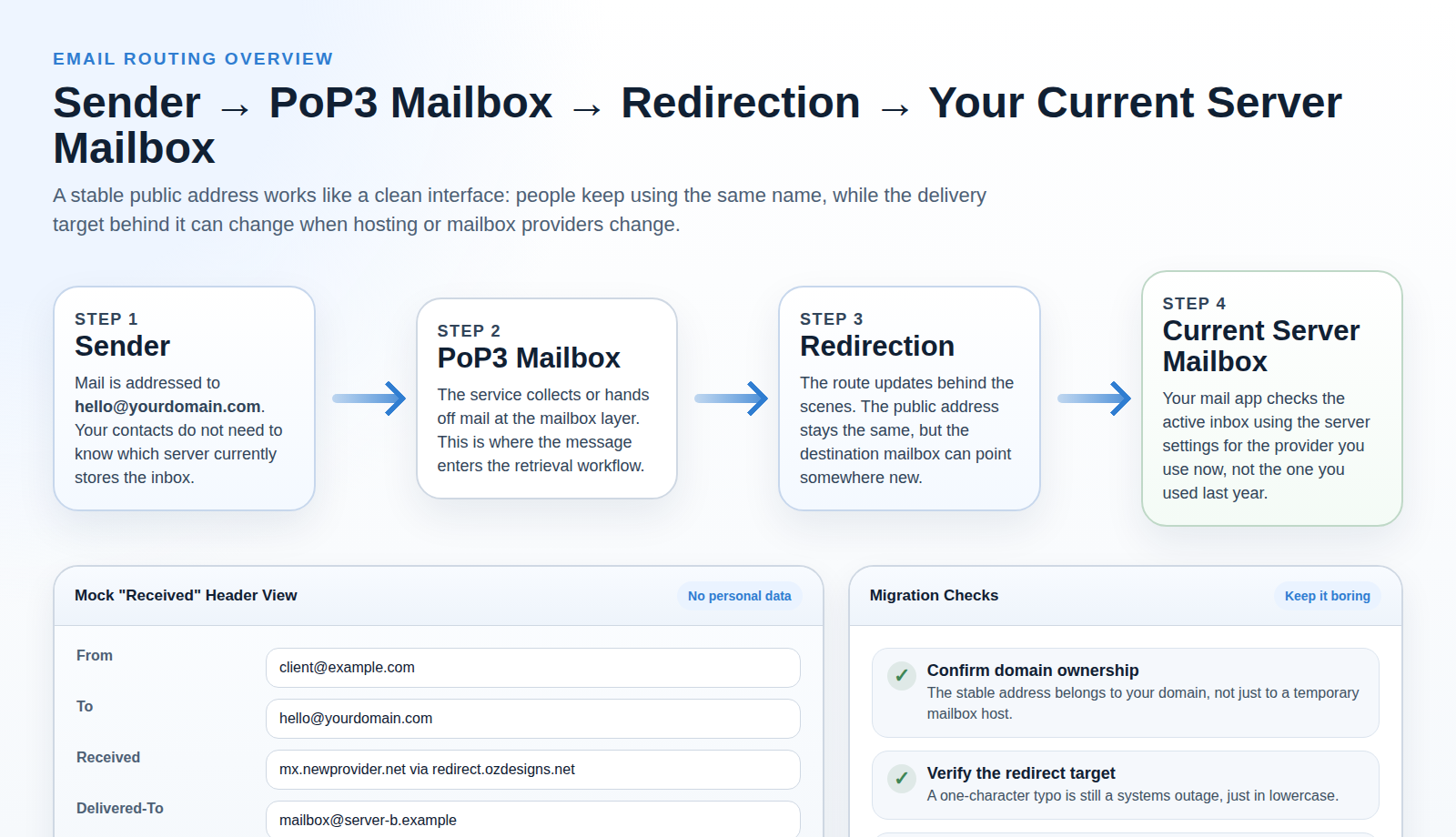
Image: Below is a simplified view of how message flow can route a message from the sender through your forwarding step and into the mailbox your team actually checks.

How to keep replies organized
Forwarding solves delivery. Organization is the next problem: where do messages go, and how do you find them later?
Use a consistent labeling rule
Create labels/folders based on routing outcome. For example:
- New Contact (incoming website messages)
- Sales Reply / Support Reply
- Needs Follow-up (messages where you owe a reply)
Centralize a “triage inbox” first
Even if multiple team members handle different categories, centralizing the first landing zone prevents silent failures. After triage, move to the right label/folder.
Assign a single owner per conversation
A simple rule: once someone replies, the thread’s next steps should be owned by the same person or role. That avoids the “who’s holding this?” problem that forwarding can accidentally amplify.
Keep templates compatible with your forwarding behavior
If you use canned responses, make sure they don’t inadvertently override the “reply behavior” your setup depends on. Test a reply end-to-end, not just the incoming delivery.
A pre-launch forwarding checklist
Run this checklist before you publish your final setup. Treat it like a smoke test for your customer communication pipeline.
- Pick your website address: the one customers will use on your site.
- Pick your destination: the inbox (or team mailbox) your team will actually monitor.
- Decide how replies should land: verify whether replies go back to the sender or the right internal mailbox owner.
- Check for forwarding loops: destination should not forward back to the source.
- Test “send + reply”: send a message to the website address, then reply from the destination inbox and confirm it returns to the correct conversation.
- Verify labeling/folder rules: ensure incoming messages land where your triage process expects them.
- Confirm visibility: check the message shows up with the expected sender identity and subject line (no confusing rewrites).
- Simulate a real subject: include key words you plan to route on (e.g., “support”, “invoice”, “quote”).
- Document the rule: keep a short note: source address → destination address + what to do if something breaks.
If you want a starting point for outreach and team communications, you can also see the site’s contact information and about page—both are useful references for how people expect to reach you.
Conclusion: forwarding is simple—your details aren’t
Email forwarding is the practical way to give your website a stable address while routing messages into your team’s working inbox. The “plain-English” version is easy: route mail from one address to another. The real work is the boring part: reply behavior, header preservation, loop prevention, and a pre-launch test that includes both sending and replying.
Next step: run the checklist above, then do one end-to-end test with a real sender account before you roll it out. That’s how small teams keep the benefits of forwarding without inheriting its chaos.
External references: RFC 5322: Internet Message Format, and Microsoft Research on collaboration/work patterns.